Smart TV (LG / Samsung)
- 1
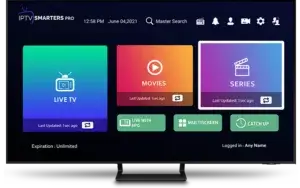
Install IPTV Smarters Pro on your Smart TV
Open the App Store on your Samsung or LG TV, search for "IPTV Smarters Pro", and install it.
- 2
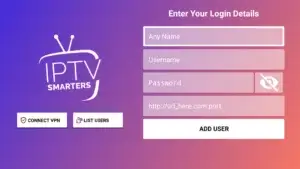
Enter your account details
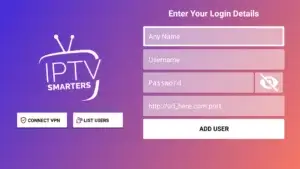
The sign-up screen asks for four things: any display name you like, the username for your line (check your confirmation email), the matching password, and the port address http://testtest.80.
- 3
Tap "Add User" and give it a couple of minutes to load the channel list.
- 4
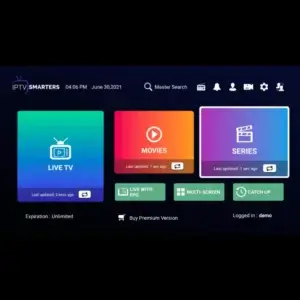
Once loading finishes, open the "Live TV" section to browse the full channel lineup. Pick any channel and playback starts right away.
Android TV / Box / Chromecast
TiviMate is widely considered one of the best IPTV players for Android TV devices — fast, clean, and packed with handy features: a fully customizable modern interface, complete EPG support, lightning-fast channel zapping, a rewind function, multi-screen viewing, adjustable subtitles and audio tracks, Xtream Codes login, and parental controls.
- 1
Grab the app from the store
Download TiviMate from your Android TV device's official app store and install it.
- 2
Open the app
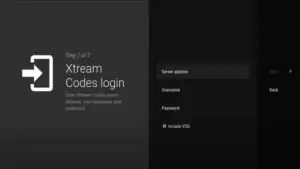
Head straight to "Add Playlist" and choose the "Xtream Codes" sign-in method.
- 3
Enter your Xtream Codes
Set the server address to http://line.testtest.80, enter your username and password, and tick "include VOD". Confirm with "Next" and the playlist loads into TiviMate automatically.
- 4
Load the playlist
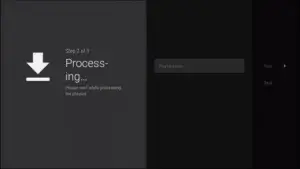
The app shows exactly how many channels, VOD titles and movies were delivered. Tap "Next" again and the full list is ready within roughly 30 seconds. Note: some features — TV guide, fast zapping, playing movies and series — require a TiviMate Premium subscription; pricing is shown inside the app.
iPhone / iPad
- 1
Start by downloading "Smarters Player Lite" from the Apple App Store, either at https://apps.apple.com/in/app/smarters-player-lite/id1628995509 or by searching for it in the Store, then install it on your iOS device.
- 2
Open the app once it's installed and enter your credentials.
- 3
Type in the login details we sent you after your order, then tap "ADD USER" to move forward.
- 4
Give it a moment to load.
- 5
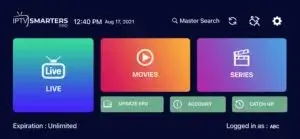
Now tap the "Live TV" icon, highlighted in the screenshot below.
- 6
Choose the channel category you want to watch and continue to the next screen.
- 7
Tap the channel name, then double-tap the small preview to switch to full screen — that's the last step.
- 8
To set up EPG, there's no need to enter a separate URL — simply tap "Install EPG" and you're done.
Enigma 2
For Enigma2/Linux receivers, you'll need the free Putty tool installed on your Windows computer.
- 1
First find your box's IP address via Settings > Setup > System Network Device > Adapter Setup > Settings. It usually starts with 192.168…
- 2
Download and install Putty on your Windows PC.
- 3
- 4
Enter the IP address you noted down for your device.
- 5
- 6
- 7
Log in using the default credentials: root.
- 8
Paste the command provided to you after your order:
- 9
wget -O /etc/enigma2/iptv.sh "your m3u link" && chmod 777 /etc/enigma2/iptv.sh && /etc/enigma2/iptv.sh
- 10
After pasting, RIGHT-CLICK, then press ENTER.
- 11
Finally type restart — your receiver will reboot and apply the settings.
Amazon Firestick
- 1
Installing TiviMate on Firestick
First install the "Downloader" app from the Amazon App Store or Google Play, and turn on "Allow Unknown Sources" in your device settings.
- 2
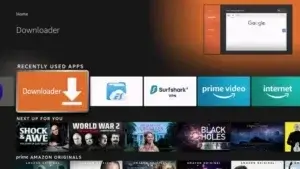
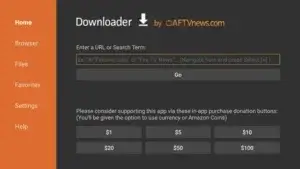
Launch the Downloader app on your Firestick.
- 3
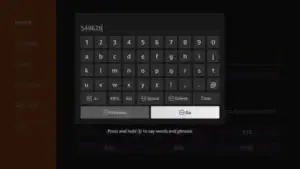
Highlight the URL field and press the select button on your remote to bring up the keyboard.
- 4
Type in the TiviMate download code: 549628, then select "Start".
- 5
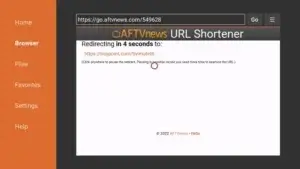
You'll be taken to a redirect page — just wait while the app downloads.
- 6
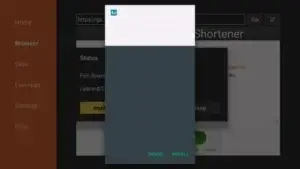
Select "Install" to finish.
- 7
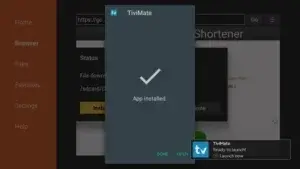
Once you see "TiviMate Ready to go!", tap it to open the app directly. Installation is now complete.
- 8
Setting up TiviMate
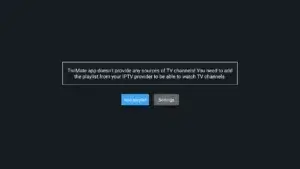
Open the TiviMate app and tap "Add Playlist".
- 9
Open the app
Go straight to "Add Playlist" and choose the "Xtream Codes" sign-in method.
- 10
Add your Xtream Codes
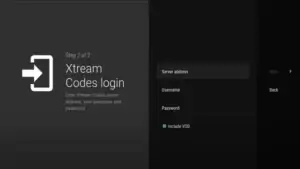
Enter server address http://line.testtest.80, along with your username and password, and tick "include VOD". Confirm with "Next" to load the playlist into TiviMate.
- 11
Load the playlist
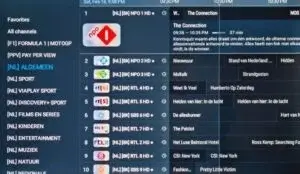
The number of channels, VOD titles and movies delivered will be displayed. Confirm again, and within about 30 seconds the list will be fully loaded. Note: a TiviMate Premium subscription is required for TV guide, fast zapping, and playing movies and series — pricing is shown inside the app.
STB Emulator
The "STB Emulator" app can emulate a wide range of IPTV set-top boxes, including MAG 200, MAG 245, MAG 250, MAG 260, MAG 270, MAG 275 and Aura HD.
- 1
Download "STB Emulator" from the Google Play Store.
- 2
Install and open it — the "Mac Address" section shows the MAC address of your virtual device.
- 3
Tap "Settings" in the top-right corner.
- 4
- 5
Select "Test Portal", then "Add Profile".
- 6
- 7
Pick the STB model you want to emulate.
- 8
- 9
Enter the portal email address that was sent to you.
- 10
Open "Screen Resolution".
- 11
- 12
Close and reopen the app.
- 13
The channel list should now be visible.
Android Smartphone / Tablet
- 1
Installing the XCIPTV Player
Unlock your Android device and open the Google Play Store.
- 2
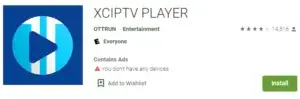
Search for "XCIPTV Player" there.
- 3
Tap "Install" to download the XCIPTV Player.
- 4
Launch the app once it's installed.

- 5
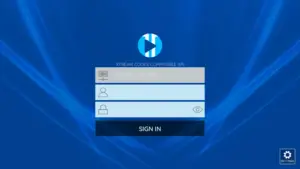
With the app open, enter your IPTV credentials and tap "Sign Up".
- 6
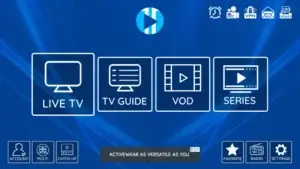
All done — enjoy your streams!
Formuler Z Box (MyTVOnline3)
MyTVOnline 3 is available for the Formuler Z11 Pro Max series and later, and it's remarkably easy to use. There are three ways to set it up, but signing in via Xtream Codes is the simplest — that's what we cover here.
- 1
Open the "MyTvOnline 3" app on your Formuler box.
- 2
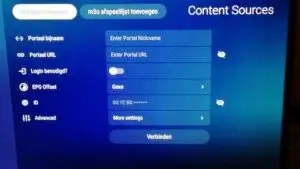
On the next screen, fill in any name for the portal, the portal URL (provided by your IPTV service), enable "Login required", and enter the username and password we sent you. Then tap "Connect".
MAG Box
Setting up your MAG box (250/254/256…) only takes a few quick steps.
- 1
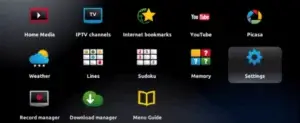
When the box boots up, the main portal screen appears. Open "Settings" and press the "SETUP/SET" button on your remote.
- 2
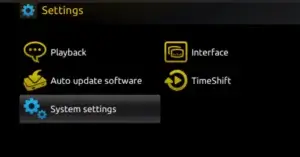
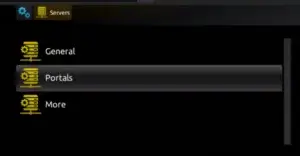
Select "System Settings", then "Servers".
- 3
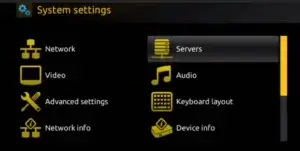
Open the "Servers" menu.
- 4
Choose the "Portals" option.
- 5
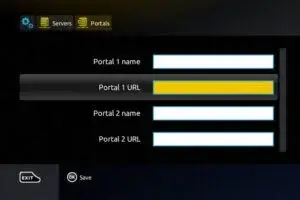
In the "Portal 1 name" field, type any name you like, and in "Portal 1 URL" enter the portal address. Important: to activate your subscription on your MAG box, you need to send us the MAC address printed on the label on the back of the box along with your order. Activation is handled entirely remotely, and right after that we'll send you the URL to set up your portal.
- 6
Select "OK" to save your changes.
- 7
Press "EXIT" on your remote.
- 8
Restart the box and select "OK" to apply the changes.
Windows / Mac
- 1
How it works
On Windows, download the .exe installer; on Mac, download the .dmg file — both install the IPTV Smarters Pro app.
- 2
Sign in to the app using the subscription details provided by your service. Note: premium features are not available on the Windows/Mac version.
Openbox
- 1
- 2
Type in your subscription's M3U URL.
- 3
When prompted to save the file, choose "Save as" and give it any name.
- 4
Copy the file onto a USB drive, then plug that drive into your Openbox.
- 5
Using the remote, navigate to Menu > Network local settings > Network App > IPTV Palace, then press the yellow button to read the file from the USB drive.
- 6
Once "success" appears on screen, setup is complete.
Kodi (XBMC) 17+
Here's how to set up IPTV on Kodi Krypton 17 or later:
- 1
- 2
Click "TV" in the left-hand menu.
- 3
Open the "Add-on browser".
- 4
Select "PVR IPTV Simple Client".
- 5
- 6
- 7
Paste the M3U subscription URL you copied earlier.
- 8
Open the playlist URL entry field.
- 9
Enter the playlist's URL.
- 10
If your M3U file is stored locally instead, set the location to "local path".
- 11
Click "M3U playlist URL".
- 12
Browse to where the file is saved and select it.
- 13
- 14
Wait for the notifications to finish loading.
- 15
Go back — the interface will now look like a regular live TV screen. Enjoy!
Roku
- 1
Using the IPTV Smarters Channel
Make sure your Roku and TV are connected, then browse the Roku Channel Store and search for "IPTV Smarters Channel". Install and open it.
- 2
Enter your username, password and Portal URL (sent to you after your order), then tap "add user". Your channels and VOD library will load and you can start watching right away.
- 3
Using the M3U Playlist Player Channel
Confirm your Roku is connected to your TV, then browse the Channel Store and search for "M3U Playlist Player Channel". Install and launch it.
- 4
Tap "Add new playlist", enter your M3U link plus any playlist name, and wait a few minutes for Live TV, movies and shows to load.
- 5
Turn your Roku off and back on, reopen the M3U Playlist Player Channel, and select the playlist you just created to access your channels and VOD.
Dreamlink T1 / T1+ / T2 / T6
Here's how to complete setup on Dreamlink T1 / T1+ / T2 and T6:
- 1
Note down the MAC address of the device.
- 2
Wait for the box to finish booting.
- 3
Let any visible update finish installing.
- 4
You'll land on the "Server Menu".
- 5
Press Exit and select "OK".
- 6
The main DOL screen shows the device's MAC address.
- 7
Configuring T1 / T1+ / T2 and T6
Once on DreamlinkOnLine, go to "settings".
- 8
Press the green button on your remote and go to "Edit".
- 9
Enter a name under "Portal Name".
- 10
Paste the URL from your activation email into "Portal URL".
- 11
- 12
You're ready to start watching. Note: if you run into issues, simply restart your Wi-Fi router and the Dreamlink box.